Google Merchant Center Suspension: Recovery Guide for Ecommerce Stores
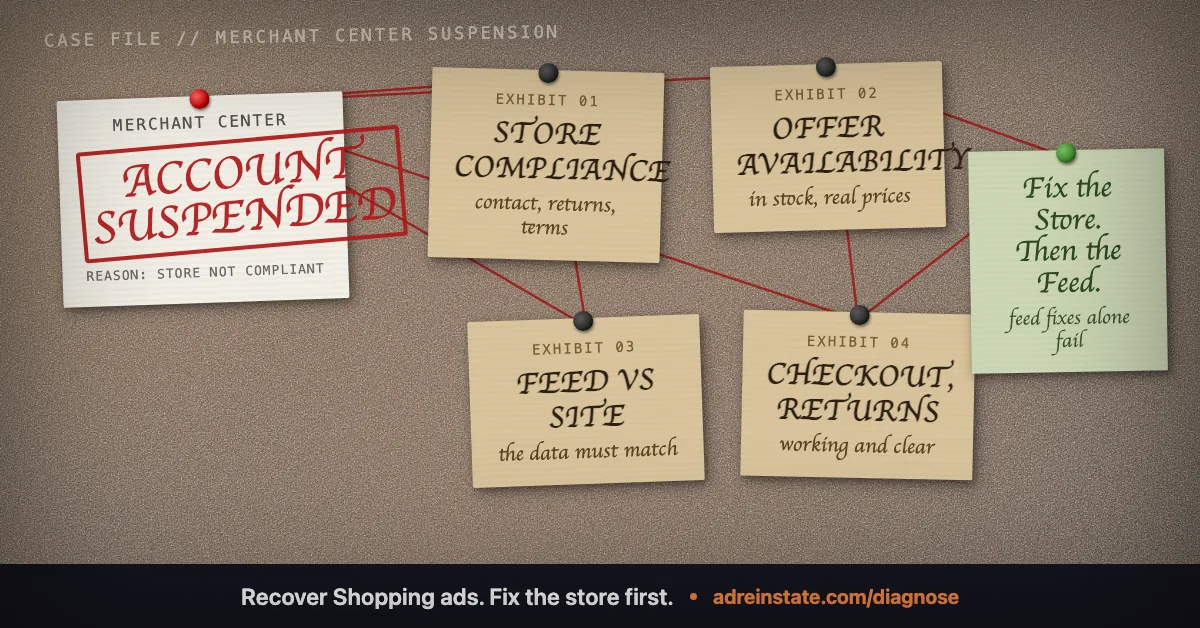
Separate product errors from account restrictions. Check the store, data source, and review requirements before submitting a Merchant Center review.
Start by identifying what Google has restricted. Record whether the issue affects a product or the account. Then note the policy, country, programme, and current review status.
Do not assume that every Merchant Center restriction has the same cause or scope. Google's issue guidance explains how to find the affected records. Keep your recovery plan tied to those records.
Create a case record from the notice
Open the issue details in Merchant Center. Save the message, affected items, country, date, and available next action.
| Record | Why it matters |
|---|---|
| Product identifier and data source | Connects an item issue to the exact offer and submitted data. |
| Account-level policy label | Defines the broader issue to investigate. |
| Affected country and programme | Prevents assumptions about restrictions in other markets or listing types. |
| Warning, suspension, or review status | Shows whether you need to correct an issue, complete a task, or wait for a submitted review. |
| Review history | Preserves what Google already considered and how it responded. |
Keep a second row when the same store has another issue. A price error should not disappear from your notes because an account restriction looks more urgent.
Audit the store and product data together
Select a small set of representative offers for the initial investigation. Include the reported item, a sale item, a variant, and an item with different shipping terms. Expand the check when you find a repeated pattern.
For each offer, record the product identifier, submitted value, landing page, and checkout result. Google's price mismatch guidance addresses inconsistencies between the data source and landing page. It also explains why structured product data needs attention.
Structured data is machine-readable information embedded in the page. A visible price correction can leave an old value in that data or in a scheduled feed.
- Check the selected variant, currency, and current price.
- Follow the offer from its submitted URL through to checkout.
- Compare delivery destinations and charges with the settings for that offer.
- Check whether the product can actually be purchased under the stated conditions.
- Read the contact, returns, and company information as a new customer.
- Record the source of each mismatch before changing it.
Use the Misrepresentation checklist for a fuller review of business identity and the shopping experience. A successful price test alone is not an account-wide compliance assessment.
Fictional worked example: one item error and one account restriction
This example is fictional. Fenwick Home sells kitchen equipment. Merchant Center shows a price mismatch for item K42 and a separate account-level Misrepresentation issue.
The store operator starts two investigation records:
| Issue | Observation | Action and evidence |
|---|---|---|
| Item K42 price | The data source says £48. The product page says £52. | Correct the stale export rule. Capture the processed data and published page showing £52. |
| Account Misrepresentation | The company page names the current operator. The returns page still names a former operator. | Confirm the actual returns process. Correct the published identity and test the contact route. |
| Remaining account audit | Other products and policies have not been checked. | Keep the task open and assign the remaining checks before requesting review. |
The price evidence supports the K42 correction. It does not prove that the account restriction is resolved. The operator completes the broader investigation and records any other findings.
The example ends with corrected records and a review preparation list. Google has not approved the fictional account.
Check the review requirements
Use Google's review instructions for the issue shown. Complete any requested identity task and check that the product data source is not empty. Choose the option that accurately states whether you fixed the issue or disagree with it.
Before selecting an option, prepare a short explanation of the relevant facts. Link each correction to its published location and supporting record. Avoid claiming that every issue is resolved when a check remains open.
If the review control is unavailable, save the message and status. Follow our review unavailable guide. Another merchant's review count does not explain your account's current restriction.
After submission, save the confirmation and monitor the existing review. Maintain the corrected store while the case proceeds. Record any necessary subsequent change so your evidence remains understandable.
Keep connected products separate
Check Google Ads for its own notice if campaigns remain restricted. Compare the account identifiers and case references before deciding which support route applies.
Also distinguish Merchant Center from Google Business Profile. An online store should not assume it needs a customer-facing location on Maps. Read our online-only shop guide before creating or changing a profile.
If you use Shopify's Google & YouTube app, Google provides separate instructions for that integration. Use the route that matches where you manage the affected account.
For help reviewing the store and case evidence, see Merchant Center suspension recovery or start a diagnosis.
Frequently asked questions
Does one rejected product mean my whole Merchant Center account is suspended?
No. Read the issue's scope. A product problem and an account restriction need separate records, even when they appear together.
Will correcting a price mismatch clear Misrepresentation?
It resolves the price discrepancy you corrected. It does not establish that a separate account-level issue is resolved. Investigate both notices.
Why is the review button unavailable?
Read the issue details for the current reason. Check pending reviews, requested verification, data source status, and any displayed cooldown. Use the dedicated review-unavailable guide for the next investigation.
Does Merchant Center recovery automatically restore Google Ads?
Check both products after the review. A separate Google Ads suspension or verification task may remain. Keep the two case histories distinct.
Still narrowing down what triggered your suspension? Read the plain answers to common questions , or see how our reinstatement services map to each violation type.
Not sure which suspension you have?
Start with a free diagnosis. We identify the likely trigger and tell you honestly whether we can fix it, before you spend anything.